The Advanced Filters in Power BI use Wildcards to restrict the report data as per the requirements. For example, we can use these advanced filters to find products that start with S, products containing Bikes, etc.
To demonstrate the Advanced Filters, we will use the Clustered Column Chart we created in our earlier post. As you can see from the Power BI Clustered Column Chart screenshot below, we used the Country Name as the Axis field, English Occupation as the Legend field, and Sales amount as the Value field.
How to use Power BI Advanced Filters?
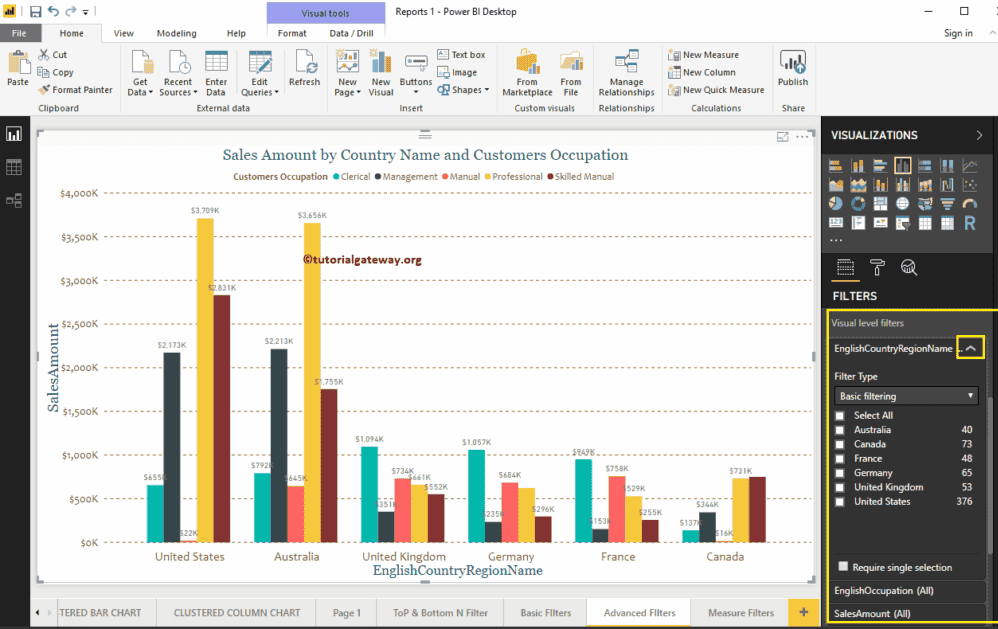
Under the Filters section, you can see the list of available filters. Let me expand the English Country Region Name to see the filter types. By default, the Basic Filters option is selected as the Filter type. Refer to the Power BI Basic Filters on the Power BI tutorial page.
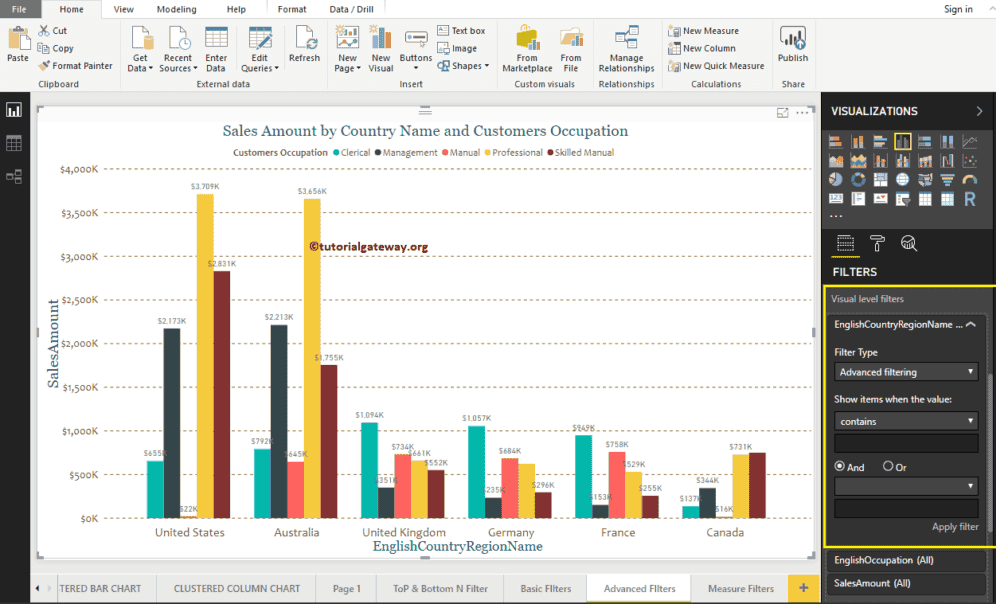
Use the drop-down under the Filter Type to change it to Advanced filtering. The following is the list of options that are available for Power BI Advanced filtering.
- Show Items when the Value: Please select the wildcard that you want to use.
- Empty Text box: Please specify the wildcard character or expression. For example, it starts with s.
- And and Or: Same as SQL AND and OR operators available in the SQL tutorial. Use this to concatenate multiple wildcard searches.
- Empty drop down list: Please select the second wildcard that you want to use.
- Empty Text box: Please specify the character or expression for the second wildcard.
The following is the list of Power BI advanced Filters options available under the Show items when the value section:
- Contains: When selecting this property, it checks each record against the Match Value. If it contains the match value at any position, the record will display.
- Does not Contain: It checks each record against the Match Value. If it does not contain the match value at any position, the record will display.
- Starts With: If the record starts with the match value, then the record will display.
- Does not start with: If the record does not start with the match value, then the record will display.
- is: If the record matches exactly with the match value, then the record will display.
- is not: If the record is not exactly equal to the match value, then the record will display.
- is blank: This option displays all the records with blank values.
- is not blank: It displays all the records with no blank values.
Wildcard Options
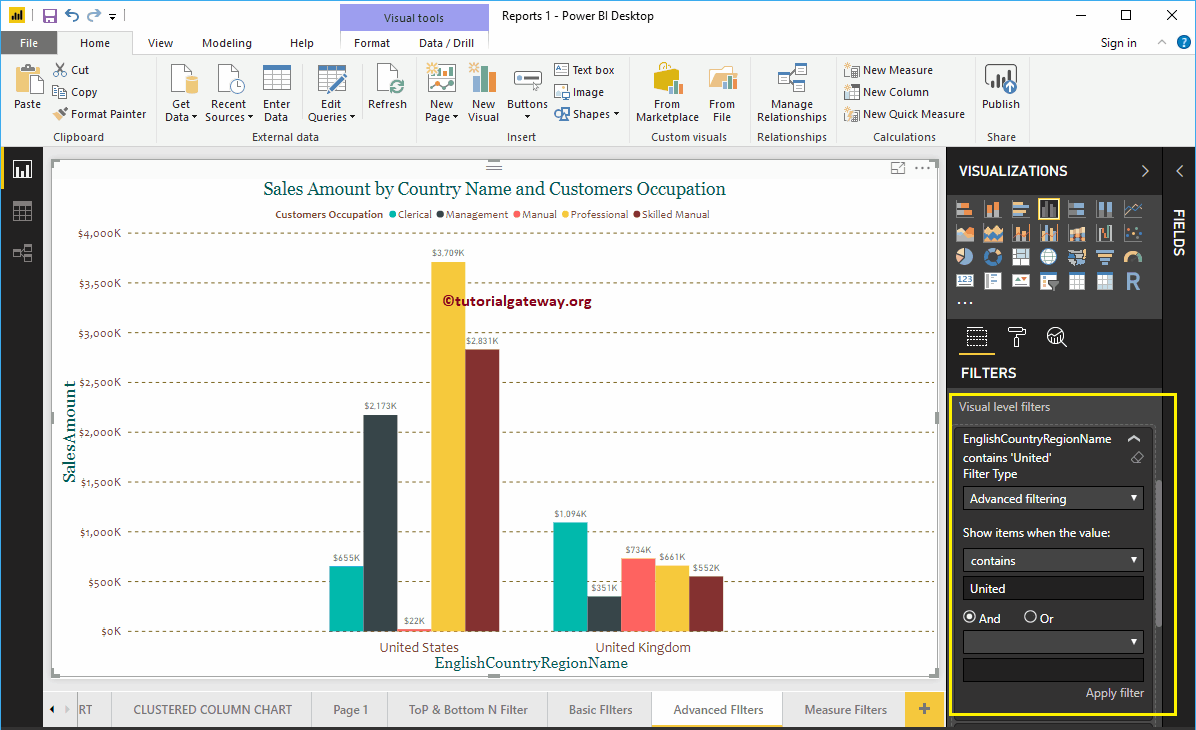
For the Power BI Advanced Filters demonstration purpose, we selected Contains as the wildcard and United as the keyword, and clicked the Apply Filter link. Refer to the Power BI report-level filters and Power BI page-level filters.
The screenshot below shows that the report displays the countries that contain the united keyword.
This time, we used the does not contain as the wildcard option and Canada as the keyword. From the screenshot below, you can see that the report displays all the countries except Canada.
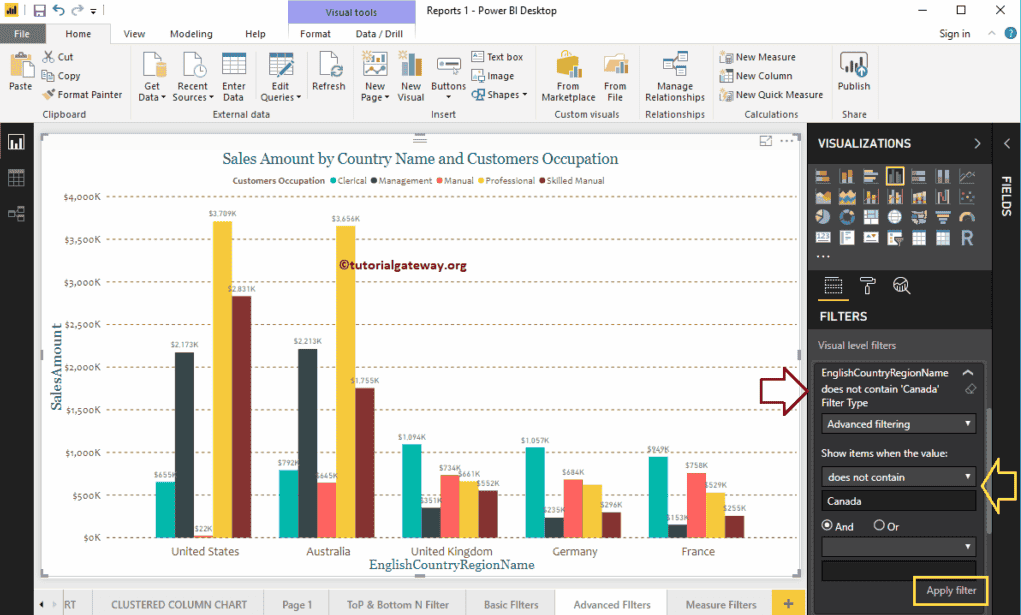
Let me apply Advanced Filters on the English Occupation column.
We used the start with as the wildcard and M as the keyword. The screenshot below shows that the report displays the occupations that start with M (Management and Manual).
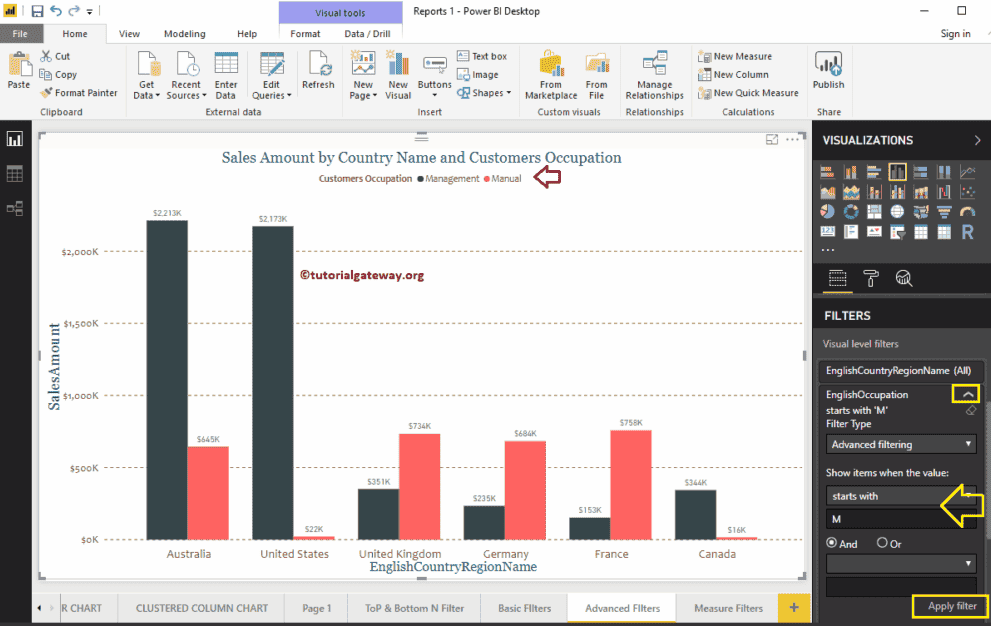
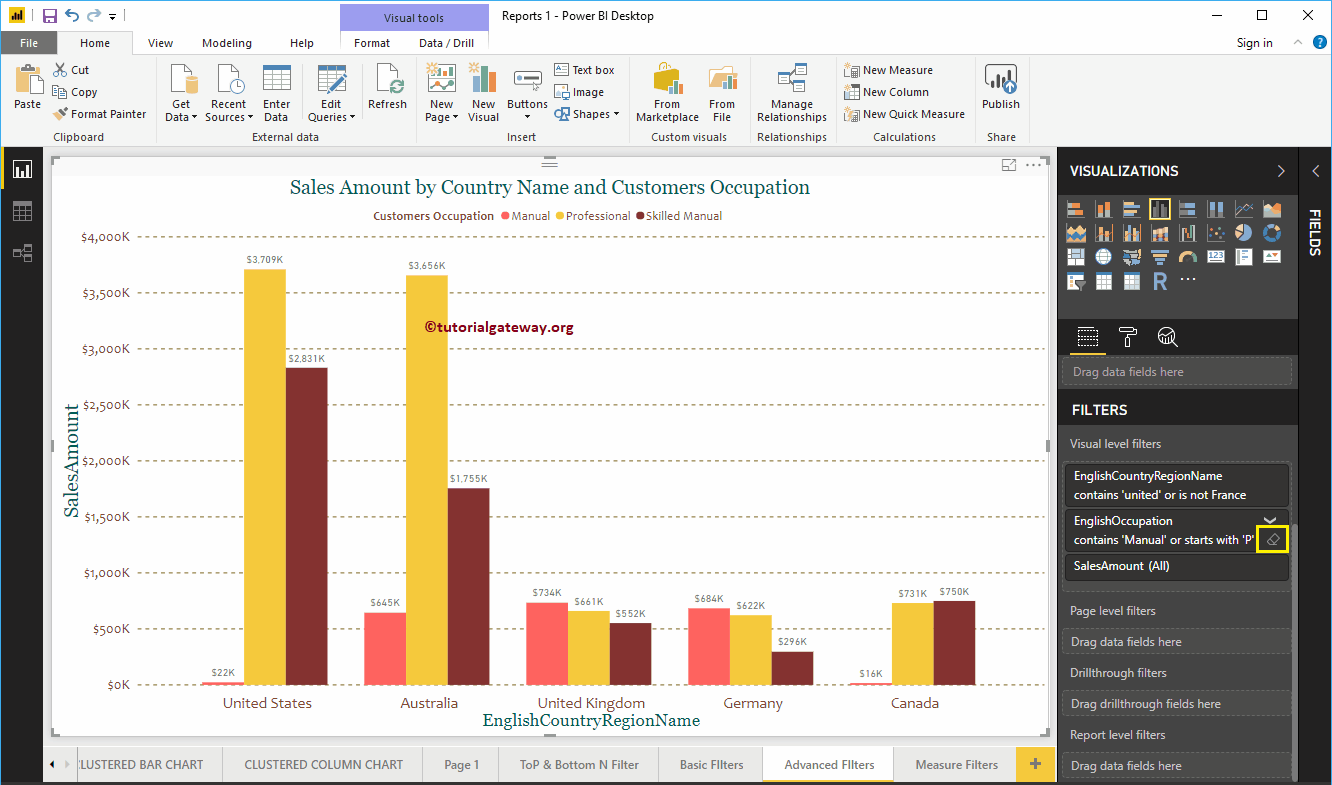
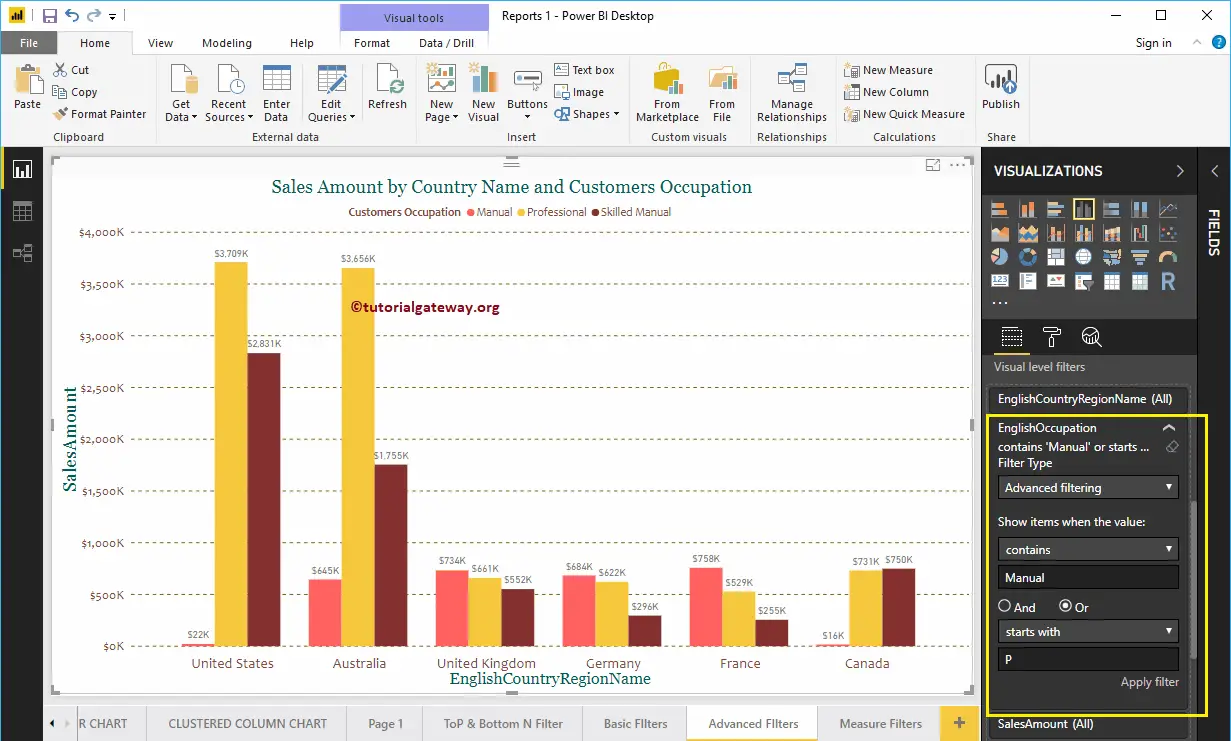
Let me use the OR operator, and Starts with will be the Keyword. Here, we are using two wildcards as Power BI advanced filters: the first wildcard checks whether the Occupation contains a manual keyword or not. The Second filter checks whether the occupation starts with P or not.
The screenshot below shows the Occupation that contains a manual keyword and the Occupation that starts with P. Refer to the Power BI TOP 10 Filter and Power BI slicer articles.
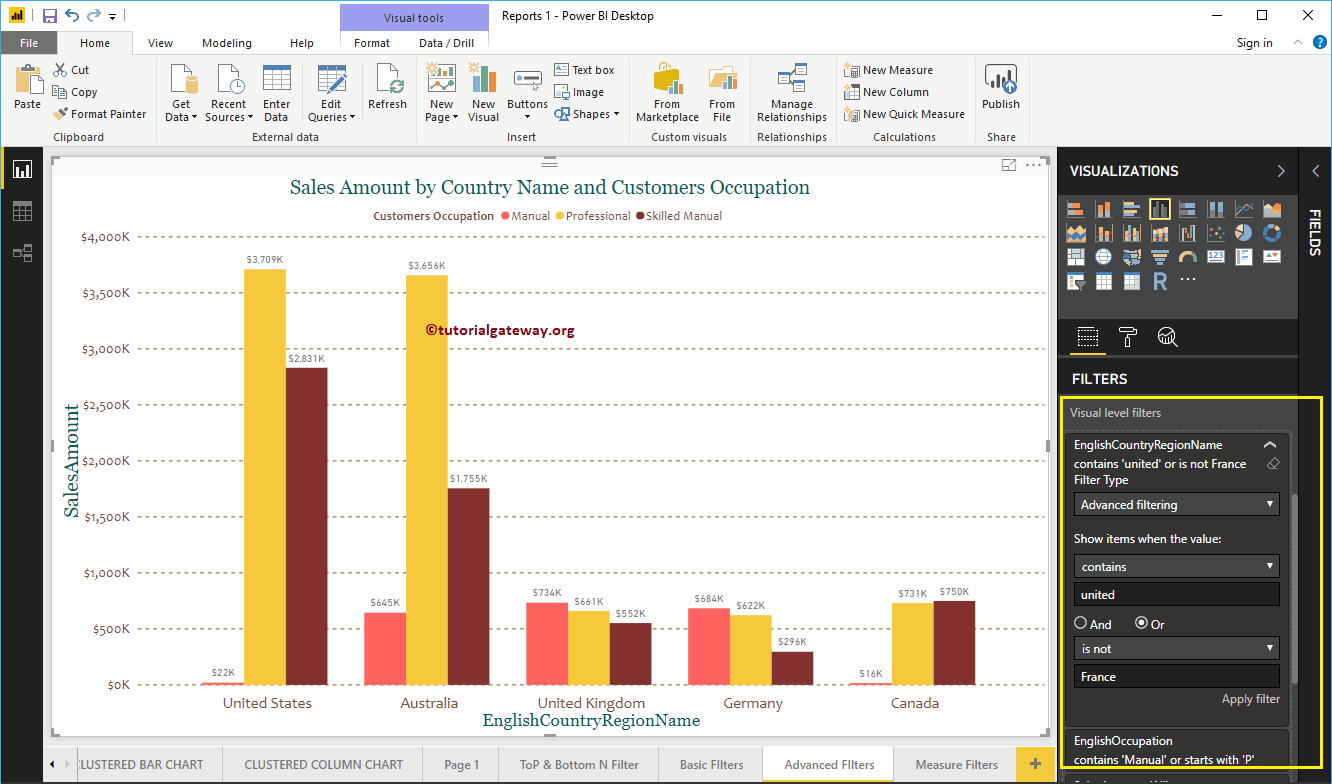
This time, we are applying multiple filters on the Country column. First, it checks whether the Country contains a united keyword or not. The Second filter checks whether the country is not France.
The below report shows the Countries that contain the United keyword and those that are not France.
Use that tiny clear filter button to remove the Advanced Filters. Also, check the Power BI drill-through filter.