
The SQL Server ROUND is a mathematical function that rounds the specified numeric expression or an individual number to the user-specified length or precision. It allows control of the level of precision. The ROUND function accepts both positive and negative numbers as the first and second arguments and performs rounding based on the sign. Please check the syntax section and the examples section to see the ROUND function in action.
When working with scientific data, stock information, financial data, business reports, measurements, and other similar types of data, precision is crucial. Using the SQL ROUND function, you can change the number from 5.12356 to 5, 5.1, 5.12, 5.124, and 5.1236.
SQL ROUND Syntax
The syntax of the ROUND Function is shown below.
SELECT ROUND (numeric_expression, length, function)
FROM [Source]
From the above syntax, you can see that the SQL Server ROUND function accepts three arguments, and they are:
- Numeric_Expression: A valid numerical expression or approximate numeric data type except for bit type. It can be a mathematical expression, a number, or a column of a table.
- Length: It is the precision to which the numeric_expression is rounded. Length can be a number or a valid numerical expression of type tinyint, smallint, or int, and it accepts positive & negative integers, and zero.
- If the length argument is a positive number, this SQL Server ROUND function will round the numeric_expression to the number of decimal points specified by length. It works on the right side of the decimal point.
- For positive values: When the length is greater than the total fraction points, the ROUND function result is the same as the input. For instance, (10.235, 4) means 10.235.
- If the length argument is a negative number, the numeric_expression value goes to the left side of the decimal point.
- For negative: If the negative length value is greater than or equal to the total digits in the actual value (number without fraction points), the SQL ROUND function returns 0.00 as the result. For instance, (10.235, -2) means 0.00 because 10 = 2 digits and length = 2 (2 (length) >= 2 (digits) is True).
- If the length is zero, it returns a whole number rounded to 0 decimal places.
- Function: This is an optional parameter, and it must be type int, tinyint, or smallint.
- If we omit this parameter or assign the default 0, then numeric_expression will remove all fractions from decimals and return the nearest integer moving towards zero.
- If we specify a function value other than 0, the numeric_expression truncates and returns the value moving away from zero.
TIP: If the numeric_expression or the length value is NULL, the SQL ROUND function returns NULL as the output.
Return Type
The return type or the output of the ROUND function entirely depends on the given argument data type. The list below provides an idea of the return data type for each input. The left side data types are the SQL ROUND function argument values, and the right side ones are the return data type.
- Int, smallint, Tinyint -> int
- Float and real values -> float
- Decimal and numeric values -> decimal with given precision.
- Bigint -> bigint
- Money and smallmoney -> money.
Although the above-mentioned syntax explanation may be confusing but the following examples provide a better understanding of each subsection.
SQL Server ROUND Function Example
This Mathematical Function returns the rounded numeric value based on the given length. The following list of examples explains how to use the ROUND function on numbers, positive and negative decimal and float values, money, etc.
Before examining the examples, please familiarise yourself with the rounding functionality. Apart from those arguments, the ROUND function follows a simple rule to display the closest value. If the last position is anything below 5, it returns the value towards zero. Any value greater than or equal to 5 returns the value away from zero towards infinity. For instance, (12.567, 2) returns 12.570, whereas (12.564, 2) returns 12.560. It is because of that 5 rule (4 < 5 but 7 > 5).
SQL ROUND to 2 decimal places
We start this series of examples with a simple example of using this function to round the given value to 2 decimal places. To do this, we must use the length (second) parameter as 2.
The following Mathematical statement uses the positive integer (2) as the second argument. So, the ROUND function will round the number to two decimal places.
SELECT ROUND(124.5650, 2) AS d1
124.5700In this SQL ROUND function example, we used the third parameter other than the default 0. So, it simply truncates the last two digits and returns the remaining value (124.5600).
SELECT ROUND(124.5698, 2, 1) AS d1
124.5600Since the function does not change the data type, the output is 124.5700 and 124.5600. To set the fraction points to two, use the CAST function.
SELECT CAST(ROUND(124.5650, 2) AS DECIMAL(5, 2)) AS d1
124.57SQL ROUND function with Positive Numbers
In the above example, we have already introduced the working functionality of the ROUND function with a positive length value. Here, we will delve deeper into positive values and present the results at each fraction point.
The query below uses the same number, i.e., 625.23456, as the first argument and changes the second argument’s positive value from 0 to 5 (maximum fraction point).
SELECT ROUND(625.23456, 0) AS p1,
	ROUND(625.23456, 1) AS p2,
	ROUND(625.23456, 2) AS p3,
	ROUND(625.23456, 3) AS p4,
	ROUND(625.23456, 4) AS p5,
	ROUND(625.23456, 5) AS p6
p1	p2	p3	p4	p5	p6
625.00000	625.20000	625.23000	625.23500	625.23460	625.23456
The following list explains the SQL Server ROUND function query results for each length (0 to 5).
- 0: Set the fraction part to zeros. From 23456, 2 is less than 5, the 625 value remains the same (625.00000).
- 1: The rounding should happen at the first decimal place, i.e., at 625.2. As the next value, i.e., 3, is less than 5, 625.2 remains the same and fills the remaining fraction part with zeros. The result is 625.20000.
- 2: Second place, i.e., 625.23. Here, the next value is 4, and it is less than 5. So, the SQL ROUND function output is 625.23000.
- 3: The round should happen at third place after the decimal point, i.e., 4, and the next value, 5, is greater than or equal to 5. So, 4 will be increased to 5, and the result = 625.23500.
- 4: It means 4th place, i.e., 5, and the next value, 6, is greater than 5. So, 5 is increased to 6 and the result = 625.23460.
- 5: It means the rounding should happen at the last place, i.e., 6. As there are no other decimal points after 6. It simply returns the same value as the input.
When working with the SQL ROUND function and decimal points, please be careful with the result set. For instance, the two statements below return two different outputs. In the first statement, rounding occurs at the second position, 625.99 and 4 < 5. So, 625.990. The second statement has 5 at the next position, and 5 >= 5 is TRUE. So, .99 becomes 100 and 625.995 becomes 626.000.
SELECT ROUND(625.994, 2) AS p1,
	ROUND(625.995, 2) AS p2
p1	p2
625.990	626.000
SQL ROUND function with Negative Numbers
If we pass a negative value as the length, instead of rounding the fraction part (after the . symbol), it will round the integer part and set the fraction points to zero. The process will happen from right to left. It means -1 is the last digit and -n is the first digit.
To explain the negative length argument values, we followed the same approach that we used in the positive numbers example. This time, we also used the same 23456.55 number as the first parameter value and changed the length value from -1 to -4.
SELECT ROUND(23456.55, -1) AS p1,
	ROUND(23456.55, -2) AS p2,
	ROUND(23456.55, -3) AS p3,
	ROUND(23456.55,-4) AS p4
p1	p2	p3	p4
23460.00	23500.00	23000.00	20000.00
The following list explains the SQL ROUND function with negative values query results for each length, from -1 to -4.
- -1: As we said earlier, the rounding process happens on the integers that are left side of the decimal point. The rounding should happen at the last digit of the integer, i.e., at 2345. As the next value, i.e., 6, is greater than 5, 2345 becomes 2346 and fills the next value 6 with 0. Next, fill all the fraction part with zeros. Result = 23460.00.
- -2: Second digit from last, i.e., 234. Here, the next value is 5 (5 >= 5 is TRUE), So the previous value is increased, and 234 becomes 235, and fill the next two values along with the fraction part with zeros. Output = 23500.00.
- -3: Third digit from last, i.e., 23, and the next value, 4, is less than 5. So, no increment to 3. So, keep 23 as it fills the next three values along with the fraction part with zeros. Output = 23000.00.
- -4: It means 4th place from last, i.e., 2, and the next value, 3, is less than 5, no increment to 2. So, keep 2 as it fills the next four values along with the fraction part with zeros. Output = 20000.00.
Suppose the third argument value is -5; as there are no values at that position, the result will become 0.00.
SELECT ROUND(23456.55,-5) AS p5;
0.00SQL ROUND Number to the Nearest 100
The length parameter in the SQL ROUND function plays a vital role in performing this nearest 100 operation. In the query below, we used 67625.876 as the actual value and -2 as the length. Since it is a negative value, i.e., 2, it will round the last two digits of the integer part. The last two digits from 67625 are 25. Here, 2 is less than 5 (rule), so they become 00, and the result will become 67600.000. If the last two digits are 50, the result is 67700.000
SELECT ROUND(67625.876, -2) AS r1;
67600.000How to round a number to the nearest 1000?
Similar to the above, pass -3 as the length value to get the rounded number that is nearest 1000. It takes the last three digits 25 (6 >= 5 True), so the previous number 7 becomes 8, and the output is 68000.000
SELECT ROUND(67625.876, -3) AS r2;
68000.000How do you round down to the nearest 10 in SQL?
There is no direct method to round down to the nearest 10; we have to perform some mathematical calculation. If the requirement is to round up to the nearest 10, use -1 as the length (Second parameter). Though the negative length is sometimes rounded down to the nearest 10, it depends on the 5 rule.
From the code below, the first statement returns 90 because (5 >= 5 is TRUE), whereas the second one returns 80 (rounded down) because (4 < 5).
SELECT ROUND(85, -1) AS r1, ROUND(84, -1) AS r2
r1	r2
90	80
The standard solution is performing the mathematical calculation. Otherwise, use the FLOOR function.
SELECT ROUND((85 - 5) / 10, 0) * 10 AS r3,
  ROUND((1234.99 - 5) / 10, 0) * 10 AS r4;
r3	r4
80	1230.000000
Using the SQL ROUND function with a Zero length
Apart from using the positive and negative numbers as the second argument, you can use 0 to set the fraction point to zero. The first statement will return 2000.00 as the output because .50 (5 >= 5 is TRUE). So, increment the previous value, i.e., 1999, and it becomes 2000. On the other hand, .49 (4 < 5), no increment, just set decimals to zeros.
SELECT ROUND(1999.50, 0) AS z1

SELECT ROUND(1999.49, 0) AS z2
2000.00
1999.00
The same process applies even to negative numbers or numeric expressions.
SELECT ROUND(-1999.50, 0) AS z3

SELECT ROUND(-1999.49, 0) AS z4
-2000.00
-1999.00
The famous 5 rule and its inconsistency
By seeing the output of the above example, you might have been confused by the negative numbers.
Since the beginning, we have mentioned the 5 rules many times. However, the SQL ROUND function rule works differently for positive and negative numbers.
- For a positive number, the previous number will increment by 1. It will move upwards (towards infinity).
- For a negative numeric_expression, instead of moving towards zero, it moves towards negative infinity. Instead of incrementing the number, it decrements by 1.
From the example below, 10.5 will become 11 by incrementing 10 by 1. Whereas the -10.5 becomes -11 (-10 -1).
SELECT ROUND(10.5, 0);

SELECT ROUND(-10.5, 0);
11.0
-11.0
Use the SQL ROUND function to Truncate
In all our previous examples, we have explained the different ways to round the given value based on the second parameter. However, you can use the SQL ROUND function to truncate the whole number. There are two ways to perform this operation, and this example explains those two ways in detail.
The first example uses 0 as the second parameter value. Since 60 is closer to 100, the ROUND function will print 125.00 as the output. We may not call it the truncate, but it helps you show the difference between truncating and rounding the values.
SELECT ROUND(124.60, 0) AS t1;
125.00The second statement uses the third parameter (function) to set the value to 1. As we mentioned in the syntax section, if you pass any value other than 0 (default) as the third argument, the SQL ROUND function will truncate the value.
To show the difference, we use the same number as the previous one and add the third argument value of 1. It returns 124.00 (not 125.00) because it does not round the value based on the decimal points; instead, it simply truncates the value.
SELECT ROUND(124.60, 0, 1) AS t2
124.00To better understand it, we will use a few more SQL ROUND Function examples with the third argument. In the first statement, we set the first argument to 0 and use 0 and 1 as the third argument. Since we set 0 as the second, the fraction points become zero. Next, if we set 0 as the third value, instead of truncating, rounding will happen (.7 > .5, so the next value is 221.00). On the other hand, (220.79, 0, 1) means truncation of two decimal points and keeping the number as it is. The result is 220.00.
SELECT ROUND(220.79, 0, 0) AS t1,
 ROUND(220.79, 0, 1) AS t2
t1	t2
221.00	220.00
This time, we perform the truncation on fraction points. Here, (99.7589, 2, 1) means the truncation should happen at two decimal places. So, the result is 99.75(truncation limit 2) and adds extra zeros because of the data type.
SELECT ROUND(99.7589, 2, 0) AS t3,
 ROUND(99.7589, 2, 1) AS t4
t3	t4
99.7600	99.7500
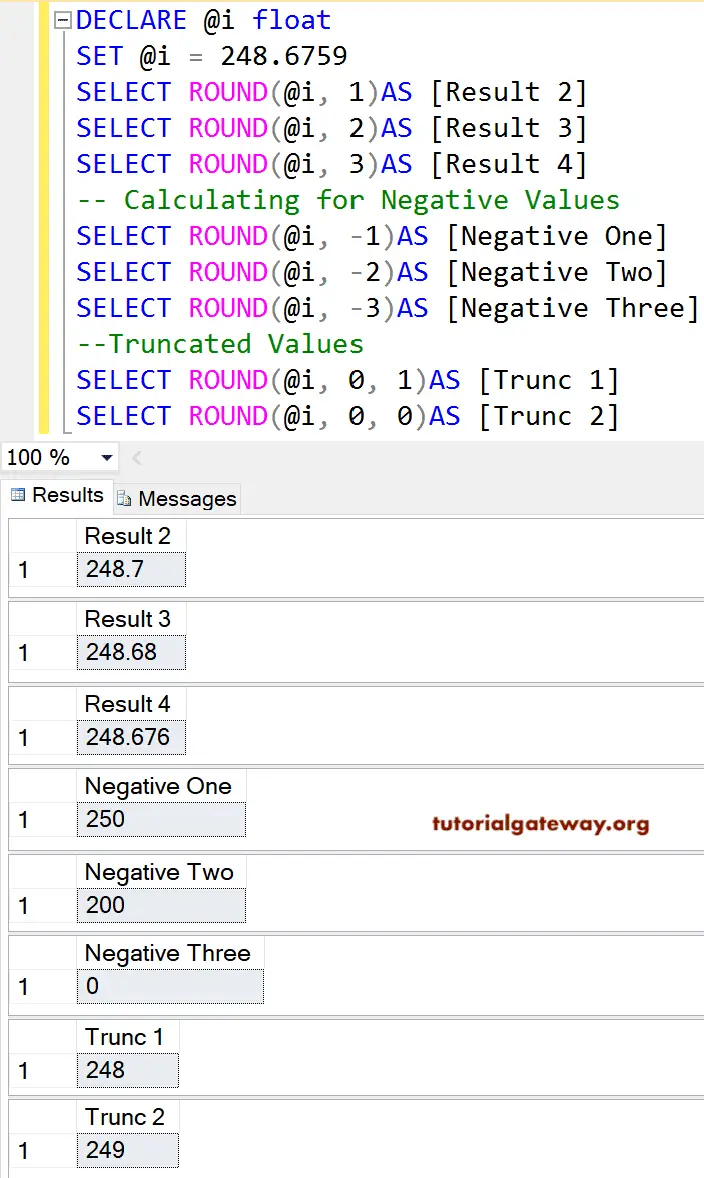
Using the SQL ROUND function on Variables
In the following example, we will explicitly declare a variable of different data types and use the ROUND function to find the rounded value.
In the query below, we declared a float variable and set 2148.759 as the value. Next, we assigned a new name to that result as ‘f1’ using the ALIAS Column in SQL Server.
DECLARE @i float
SET @i = 2148.759
SELECT ROUND(@i, 2)AS f1
2148.76Numeric Type
DECLARE @n NUMERIC(10, 4)
SET @n = 2918.7258
SELECT ROUND(@n, 2)AS n1
2918.7300Money Data type
SELECT ROUND($3500.75, 0)AS Amount,
	ROUND($100.25, 0) AS Saving
Amount	Saving
3501.00	100.00
Working with Integers
It is very interesting to work with integers because the SQL ROUND function returns different values for positive and negative length values. First, we declared a new variable and assigned the value 7.
DECLARE @v INT
SET @v = 7
SELECT ROUND(@v, 1)
7Since there are no decimal points in the @v variable, the ROUND function will return the same value for any length number. Please replace 1 with 2, 3, etc, and you get 7 as the output.
Negative Length
Here, -1 means work on integer 7, and 7 is greater than 5, so the value will increment to the nearest rounded value, i.e., 10. If you use -2, -3, -4, etc, as the length, the SQL ROUND function will return 0 because there are no digits to perform rounding.
SELECT ROUND(@v, -1)
10Negative Numeric Expression
In our previous list of examples, we used positive, negative, and zero as the length (second argument). However, we haven’t changed the numeric_expression sign, and we always use the positive value in the first argument. Let me show you whether the SQL ROUND function works the same way for negative numbers as for positive.
Negative Number and Positive Length
It acts the same for the positive and negative numbers, but instead of moving towards zero, it moves away from zero. Please check the “famous 5 rule and its inconsistency” section above.
SELECT ROUND(-4567.436, 1) AS p1,
	ROUND(-4567.436, 2) AS p2
p1	p2
-4567.400	-4567.440
Negative Number and Negative Length
SELECT ROUND(-4567.10, -1) AS p1,
	ROUND(-4567.1, -2) AS p2,
	ROUND(-4567.1, -3) AS p3
p1 p2 p3
-4570.00 -4600.0 -5000.0SQL ROUND Function on Table Columns
Until now, we performed the rounding on directly inserted numbers and declared variables. However, you can use the same technique and replace those numbers with the table column name. To demonstrate the same, we use the SalesTerritory table from AdventureWorks2022.
In this example, we use the ROUND function to calculate the polished numeric values for all the records present in [SalesYTD]. As you can see, we use the positive 1, 2, 3, negative -1, -2, -3, along with 0.
SELECT [TerritoryID],[CountryRegionCode] Country,[SalesYTD]
,ROUND(SalesYTD, 1) P1, ROUND(SalesYTD, 2) P2, ROUND(SalesYTD, 1) P3
,ROUND(SalesYTD, 0) AS R0
,ROUND(SalesYTD, -1) N1, ROUND(SalesYTD, -2) N2, ROUND(SalesYTD, -1) N3
FROM [Sales].[SalesTerritory]
Similar to the above example, you can use the ROUND function with the combination of the built-in SQL functions, including aggregate functions, date functions, etc.
The query below uses the AVG and SUM functions to calculate the sum and average of the sales this year, profit, and the rounded values. Here, the GROUP BY will group the table by continent.
SELECT [Group]
      ,SUM([SalesYTD]) AS TotalSales
      ,AVG([SalesYTD]) AS SalesAVG
      ,ROUND(AVG([SalesYTD]), 0) AS RSalesAVG
      ,ROUND(SUM([SalesYTD]) - SUM([SalesLastYear]), 0) AS Profit
  FROM [Sales].[SalesTerritory]
  GROUP BY [Group]
SQL ROUND function with DATE and TIME
When working with the ROUND function with DATE and TIME data types, most of the date and time functions will return the nearest values. Sometimes, when using the DATEDIFF function, there is a fraction part that might be rounded for analysis purposes. In such a case, combine the ROUND function with the DATE and TIME columns to get the result.
The query below uses the Server information and calculates the user usage by Hours and Days.
SELECT  [ID],[Location],[StartDate],[EndDate]
    ,DATEDIFF(MINUTE, StartDate, EndDate) AS UsedMinutes
    ,DATEDIFF(MINUTE, StartDate, EndDate) / 60.0 AS Hours
    ,ROUND(DATEDIFF(MINUTE, StartDate, EndDate) / 60.0, 0) AS BillingHours
    ,DATEDIFF(HOUR, StartDate, EndDate) / 24.0 AS Days
    ,ROUND(DATEDIFF(HOUR, StartDate, EndDate) / 24.0, 0) AS BillingDays
FROM [Servers]
SQL ROUND function working with NULL Values
As we mentioned at the beginning, if either the numeric_expression or the length argument is NULL, the ROUND function will return NULL as the output. For instance, both the statements in the query below return NULL as the output.
SELECT ROUND(NULL, 3) AS n1
	,ROUND(999.345, NULL) AS n2
n1	n2
NULL	NULL
To deal with NULL values, use the COALESCE function and add the default value. Here, we directly incorporated the NULL value. However, in real-time, please replace the NULL with the column name.
SELECT ROUND(999.345, COALESCE(NULL, 0)) AS n3;
999.000The interesting factor about the ROUND function is that it ignores NULL values in the third parameter. The statement below works and returns 125.6790 as the output.
SELECT ROUND(125.6789, 3, NULL) AS n3
125.6790Working with String Value
As long as the given text is implicitly converted to a numeric value, the SQL ROUND function will work without any issues.
SELECT ROUND('1133.8769', 2) AS s1
1133.88In the statement below, 1133P.8769 is not a numeric value, and it can’t be converted to a number. So, it will throw an error.
SELECT ROUND('1133P.8769', 0) AS s1
Msg 8114, Level 16, State 5, Line 1

Error converting data type varchar to float.
Arithmetic Overflow Error
As we mentioned earlier, the SQL ROUND function returns the same data type with the exact length as the output value. It may cause the Arithmetic Overflow error.
For example, both of the statements below will throw the Arithmetic Overflow error. Here, 999.50 means DECIMAL(5, 2), but both statements will return the result as 1000.00, and it does not fit inside the DECIMAL(5, 2).
SELECT ROUND(999.50, 0) AS av1

SELECT ROUND(999.50, -3) AS av1
Message
Arithmetic overflow error converting expression to data type numeric.Please use the CAST function to change the decimal data type length. Remember, you must use the CAST function before applying the ROUND function.
SELECT ROUND(CAST(999.50 AS DECIMAL(6,2)), 0) AS av1
1000.00NOTE: Before applying the ROUND function, please understand the data type and its length to avoid these errors.
Divided by Zero Error
When working with the SQL ROUND function to perform mathematical calculations, such as division, you may encounter a division by zero error. If you consider the table and imagine that one of the column values is 0. If you divide any numeric value by 0, it will throw a division by zero error. To avoid this, use the NULLIF function.
To demonstrate the same, we declared a variable @d and set its value to 0. Within the SELECT statement, the NULLIF function checks for 0s and, instead of throwing an error, it returns NULL. In real-time, replace @d with the column name.
DECLARE @d INT = 0;

SELECT ROUND(100 / NULLIF(@d, 0), 2) AS result;
NULLSQL ROUND Vs FLOOR Vs CEILING functions (up or down)
The ROUND function provides greater flexibility to round the number to the exact precision point. It includes rounding the numeric part, the fraction part, and truncating the values. Depending upon the second argument, it can round up or down. On the other hand, both the CEILING and FLOOR functions will round numbers up and down to the nearest whole number.
It is essential to understand the difference between the SQL ROUND, CEILING, and FLOOR functions to utilise the required one.
- CEILING Function: It returns the nearest integer that is greater than the given number. It will round upwards.
- FLOOR Function: It returns the closest integer that is less than the given number. It will round downwards.
- ROUND Function: It returns the nearest value by rounding up or down. We can control the decimal points, integer part, etc.
TIP: If you want to round up to the nearest integer (no decimals), prefer the CEILING function, and for rounding downwards, use the FLOOR function. For more control over decimal values, prefer the ROUND function.
The two statements below give an idea of their functionalities. In the first statement, we used the CEILING and FLOOR functions on the same value (2.6). The first one returns the maximum value, and the second returns the minimum value.
SELECT CEILING(2.6) AS Up, FLOOR(2.6) AS Down
Up	Down
3	2
The following SQL ROUND function query returns the same result as the above.
SELECT ROUND(2.6, 0) AS Up, ROUND(2.6,0, 1) AS Down
Up	Down
3.0	2.0
SQL ROUND Vs CAST and CONVERT
Both the CAST and CONVERT functions are primarily used to change the data type of a given column or value. Although there are differences between them that we wont discuss on this page.
When you compare the ROUND function with CAST or CONVERT, ROUND performs the mathematical rounding of the decimals. On the other hand, CAST and CONVERT truncate the value based on the given length.
If you observe the three statements, all of them return the same output. However, the SQL ROUND function won’t change the data type or length. On the other hand, both CAST and CONVERT change the data type to two decimal precision.
SELECT CAST(1479.1567 AS DECIMAL(6,2)) AS c1
SELECT CONVERT(DECIMAL(10, 2), 1479.1567) AS c2
SELECT ROUND(1479.1567, 2) AS c3
c1
------
1479.16

c2
------
1479.16

c3
------
1479.16